
Client Configurations: Configure Dietary Restrictions
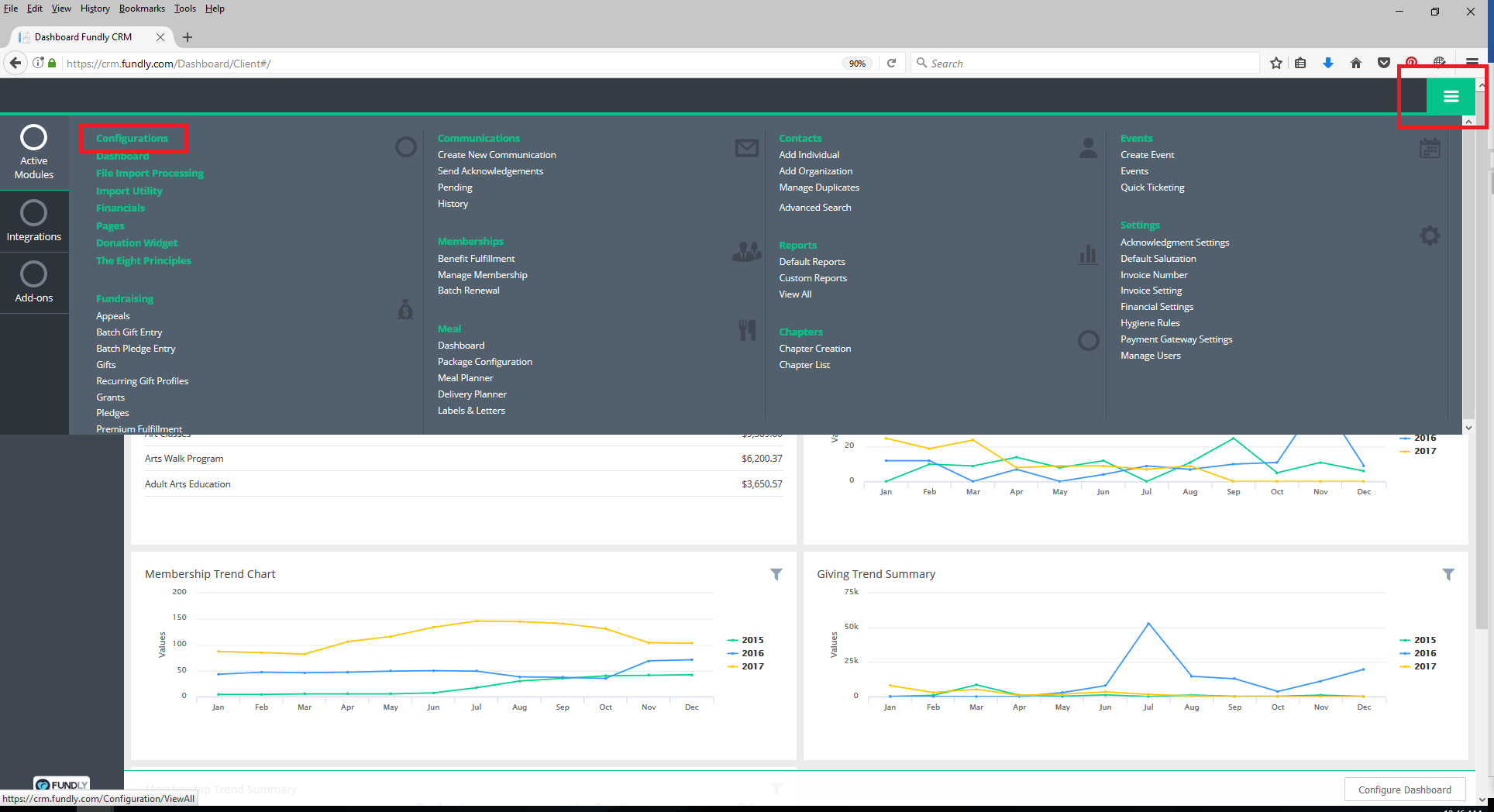
- To configure dietary restrictions, go to the Main Menu (green button in the upper right hand corner) and select Configurations.
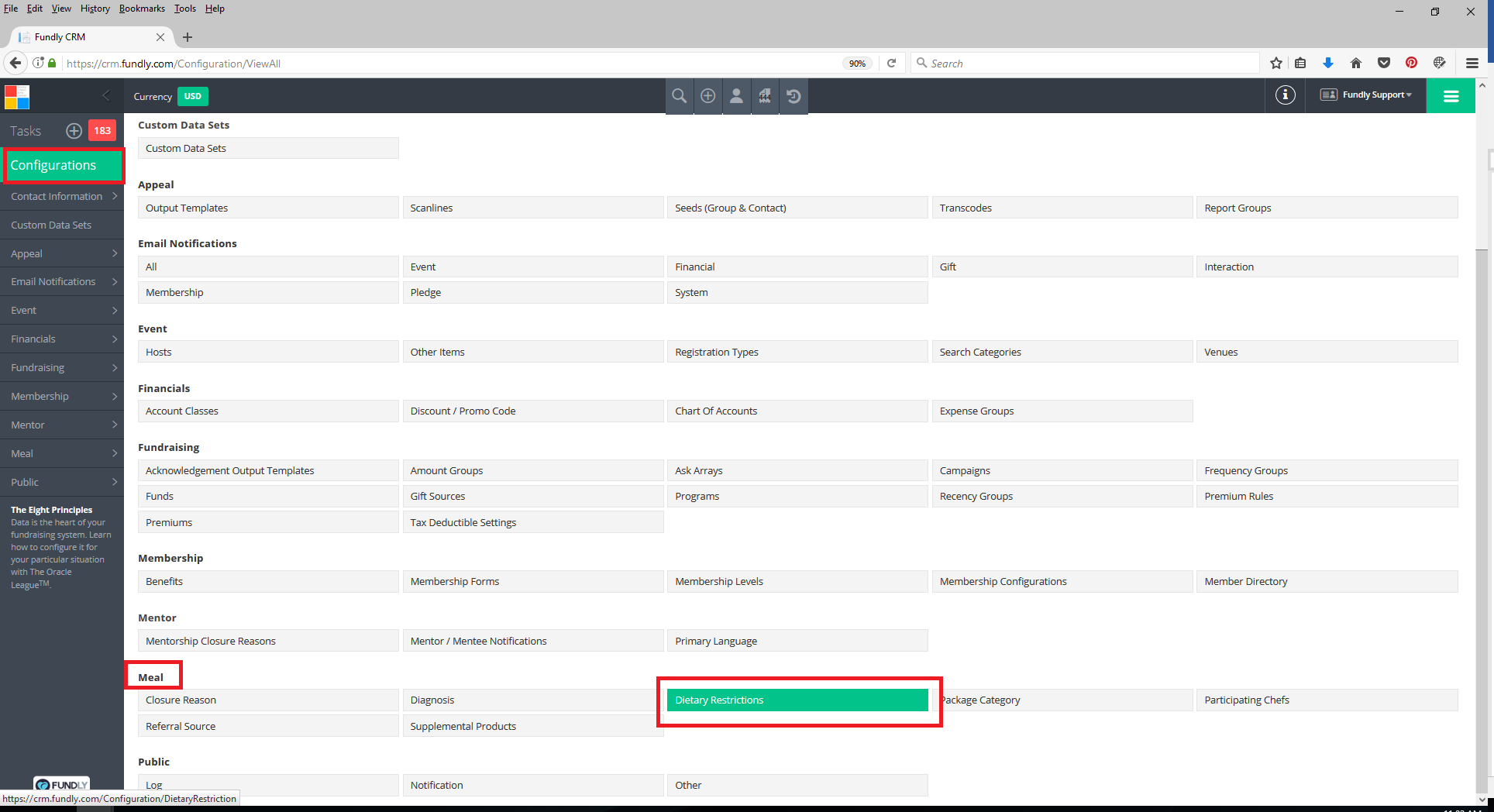
- Scroll down to the Meal section and select Dietary Restrictions.
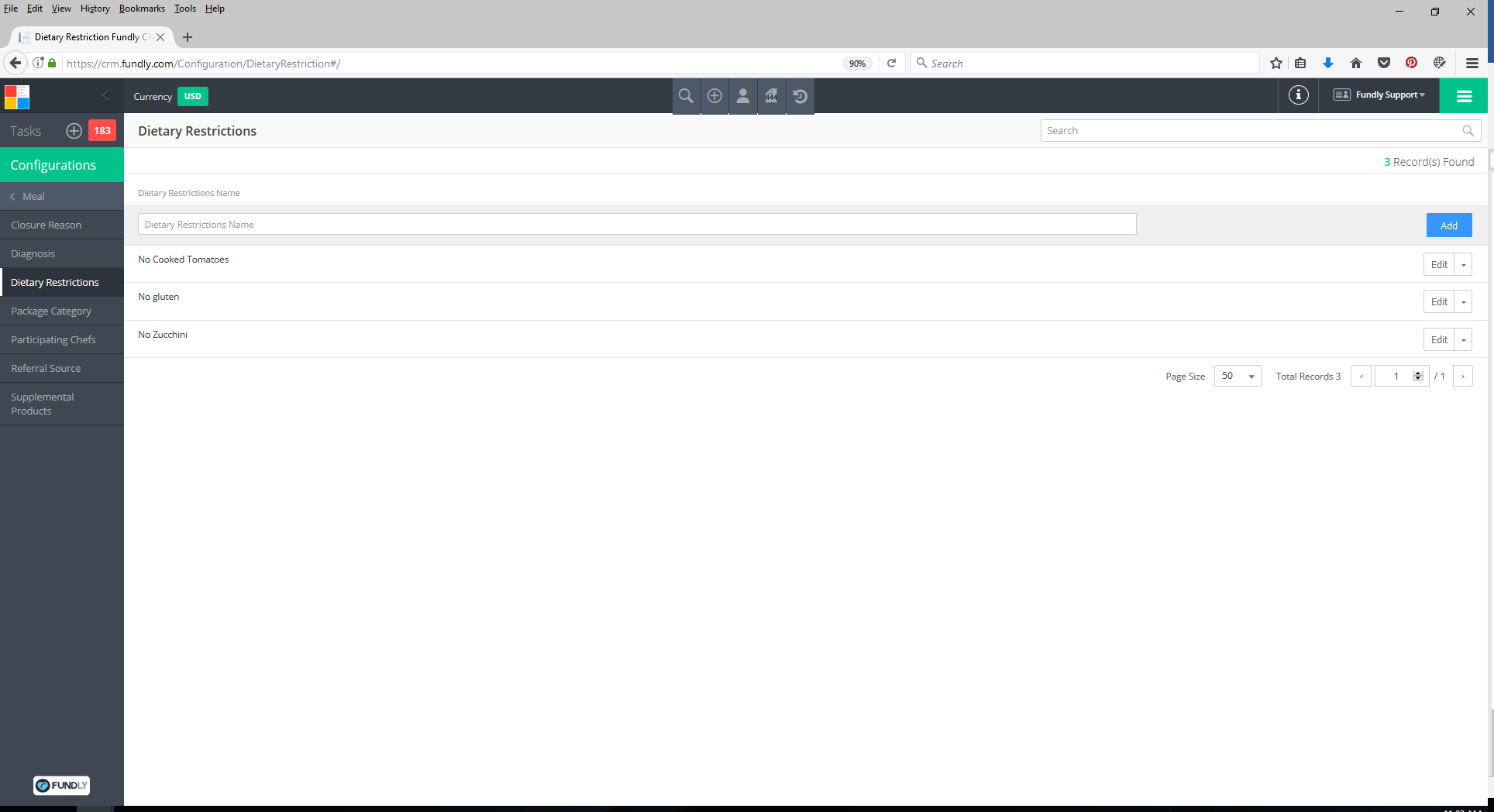
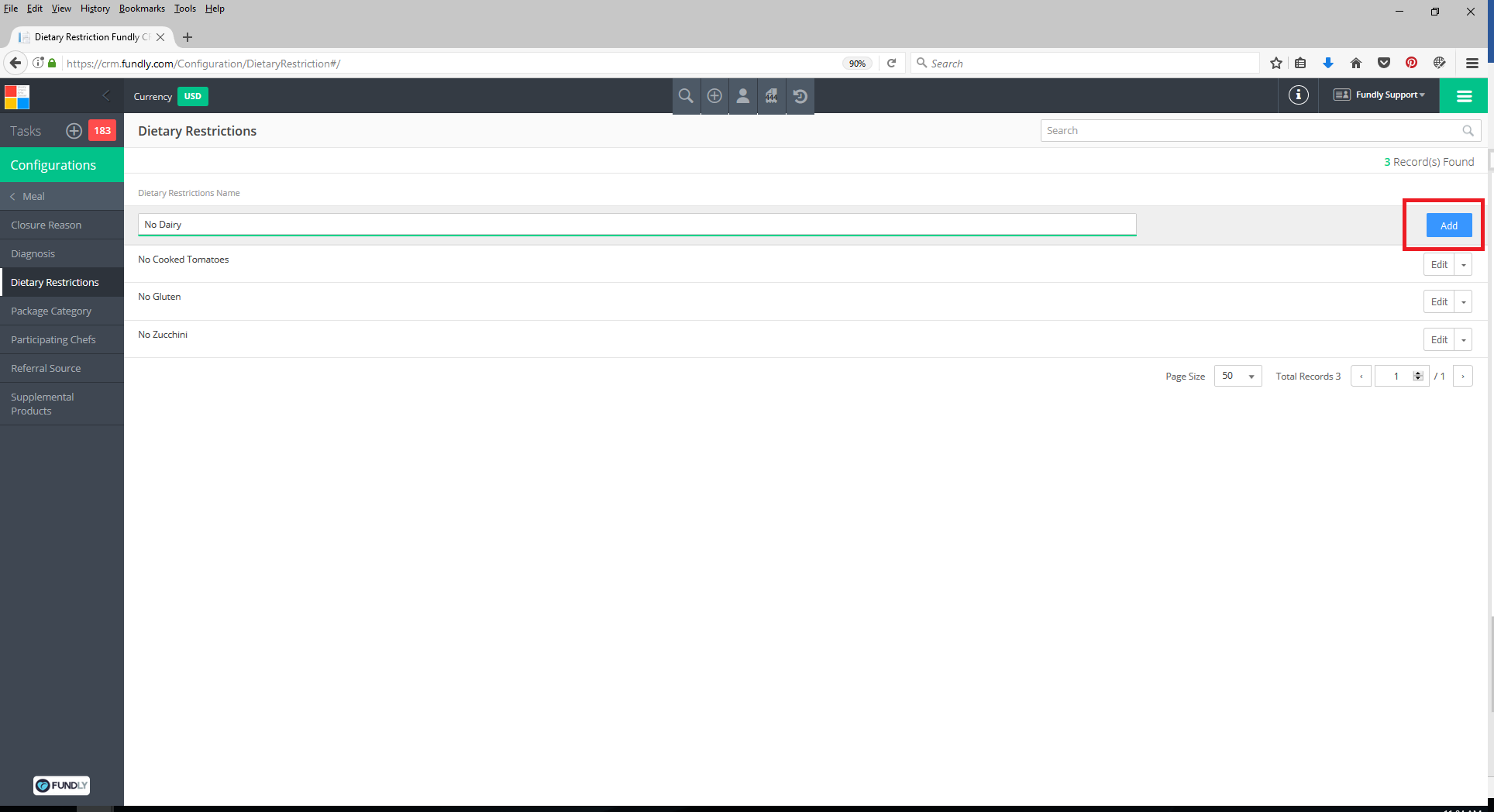
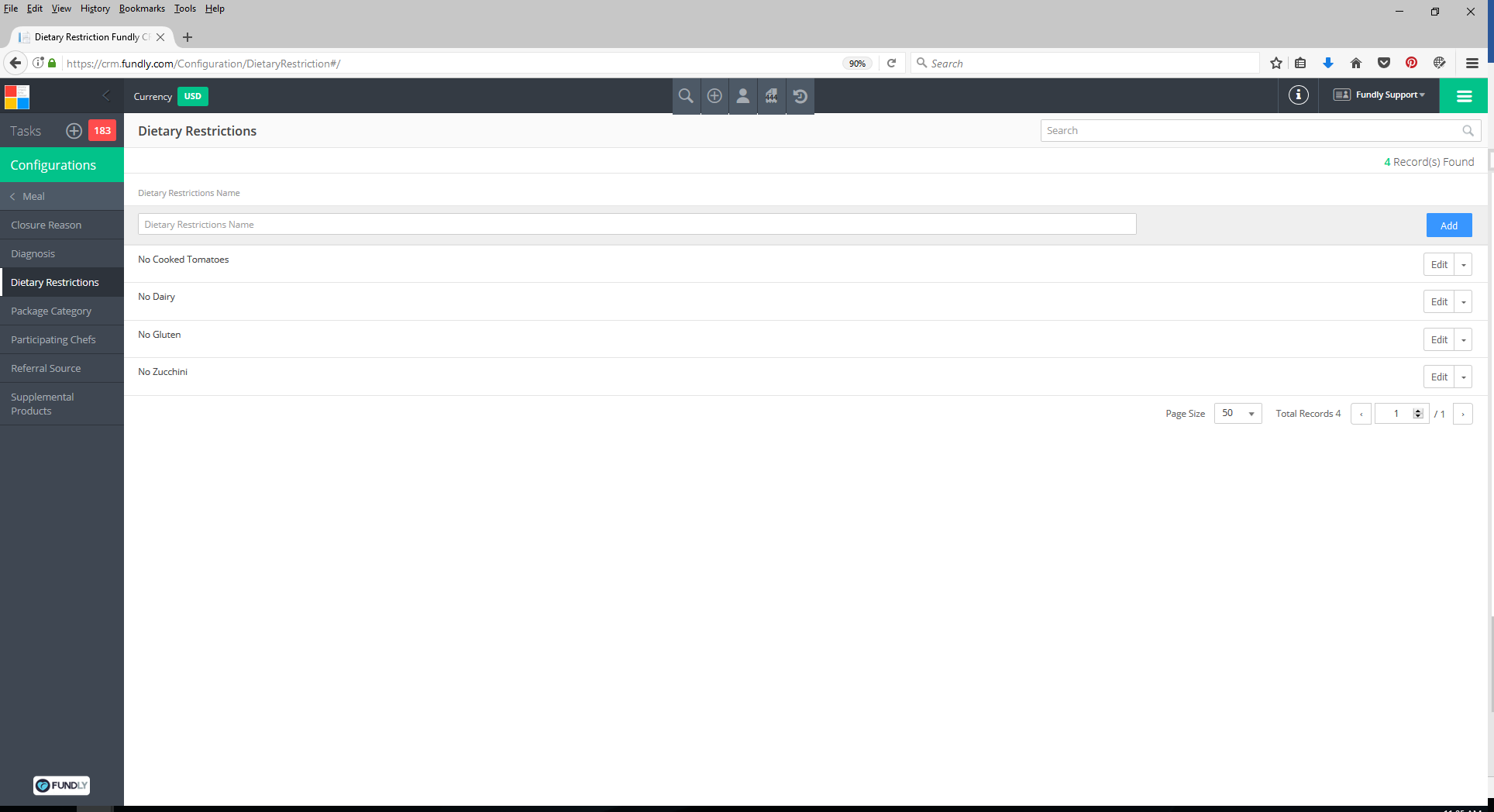
- On the Dietary Restrictions Index screen, you will see a list of your currently configured dietary restrictions.
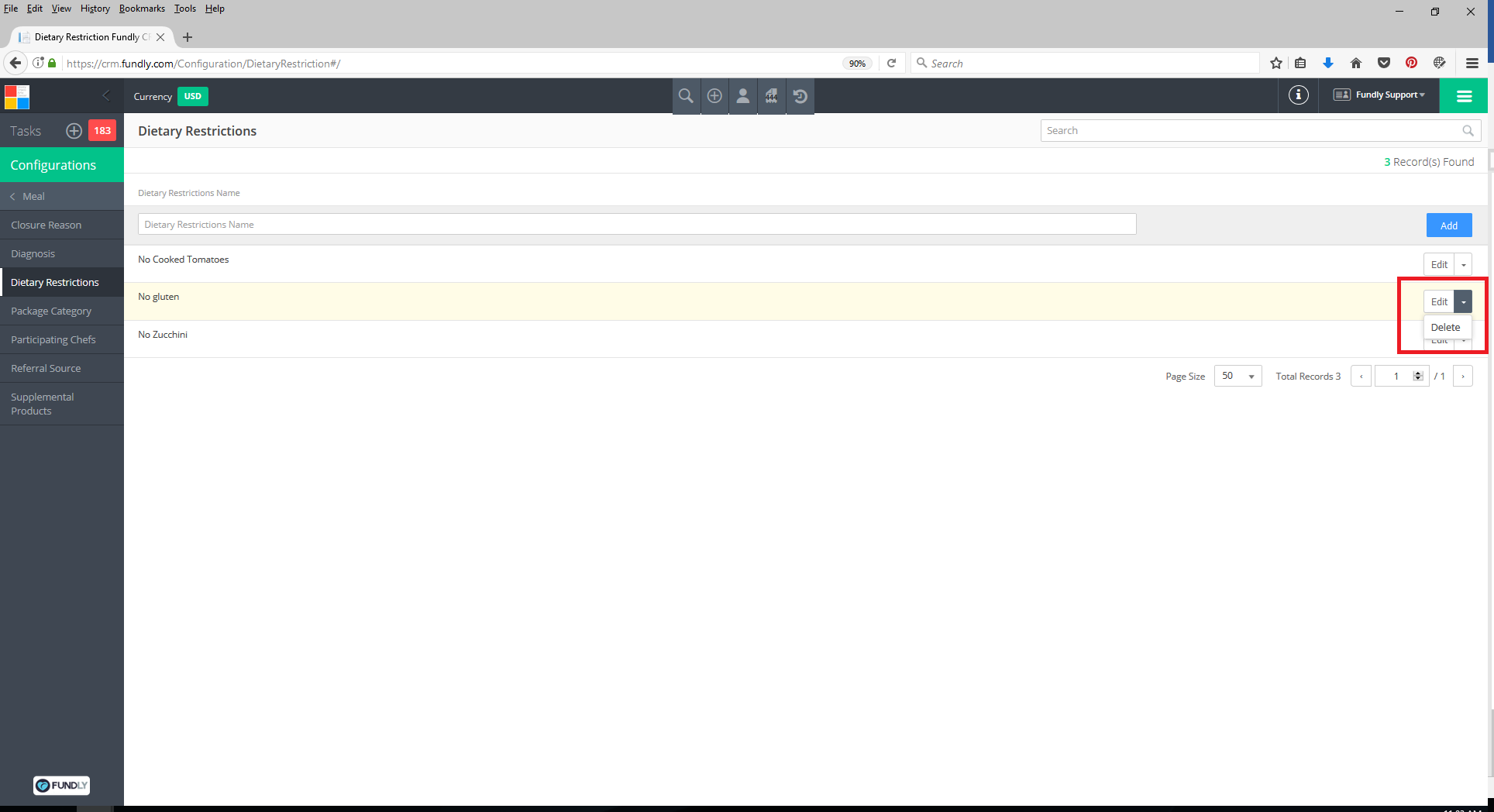
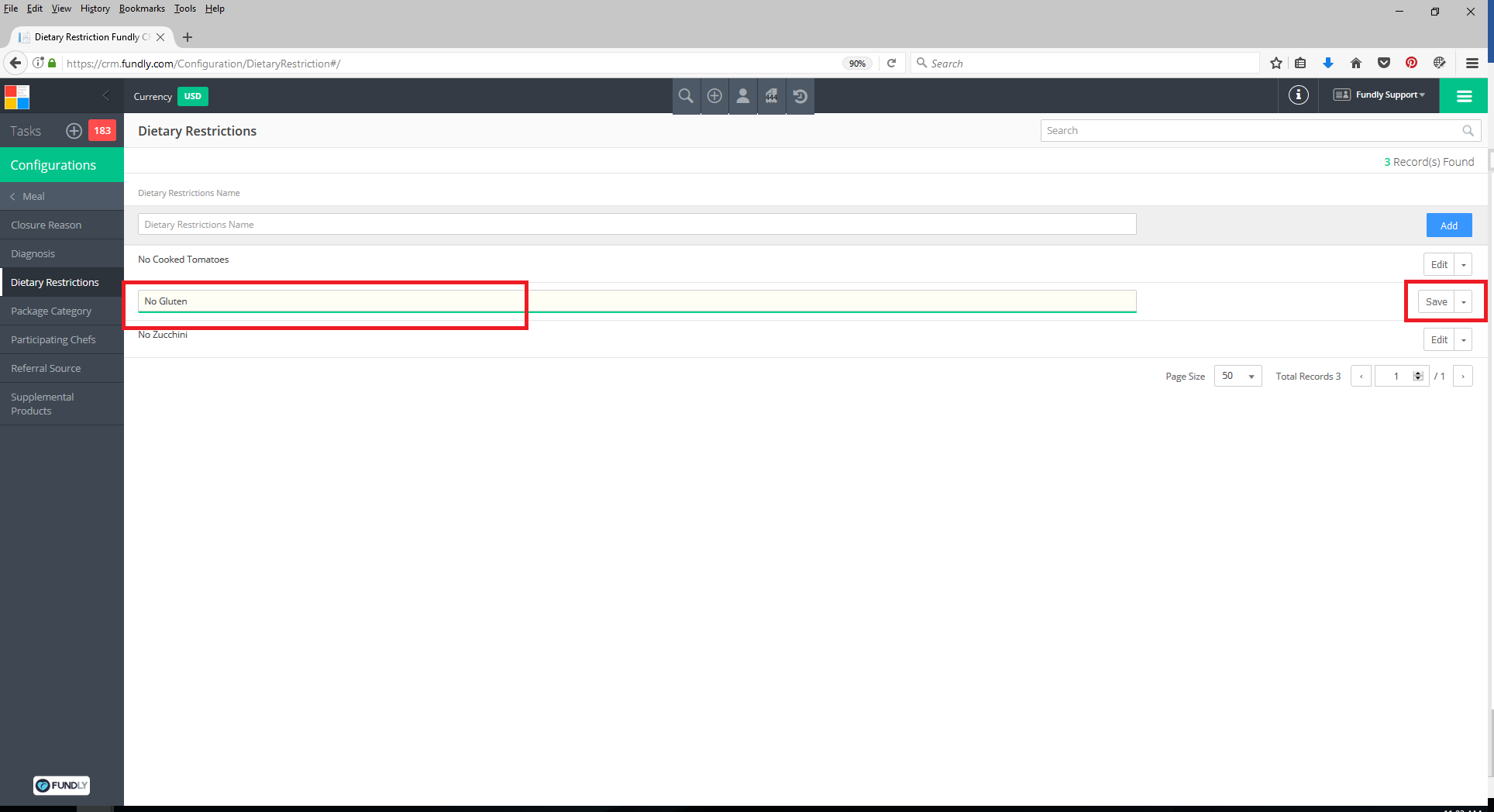
- You can edit these restrictions by clicking on the drop down to the right of the restriction and selecting Edit.
- Edit the Dietary Restriction Name and then click Save (to the right of the dietary restriction name).
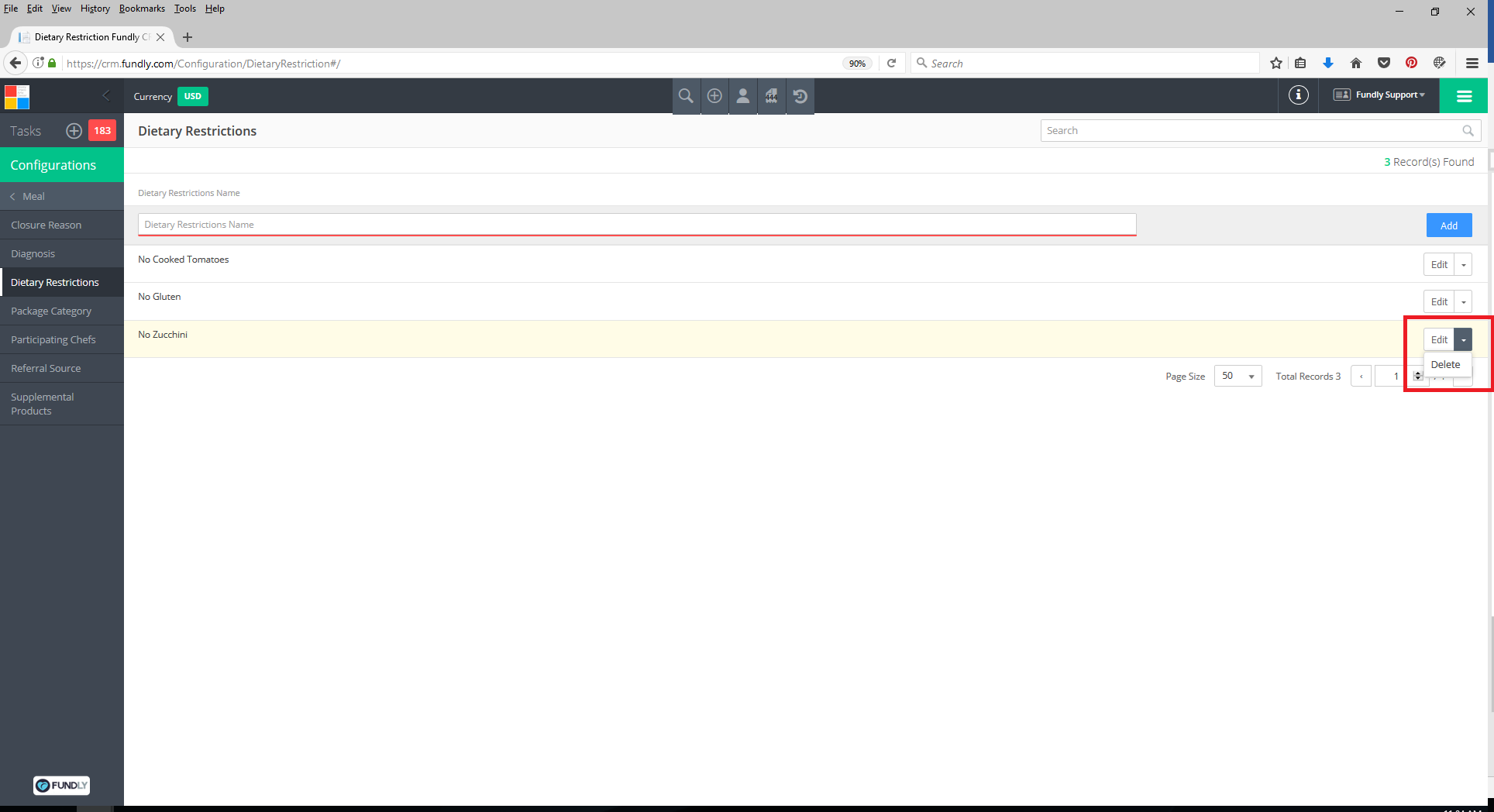
- To delete a dietary restriction, click the drop down to the right of the diagnosis and select Delete.
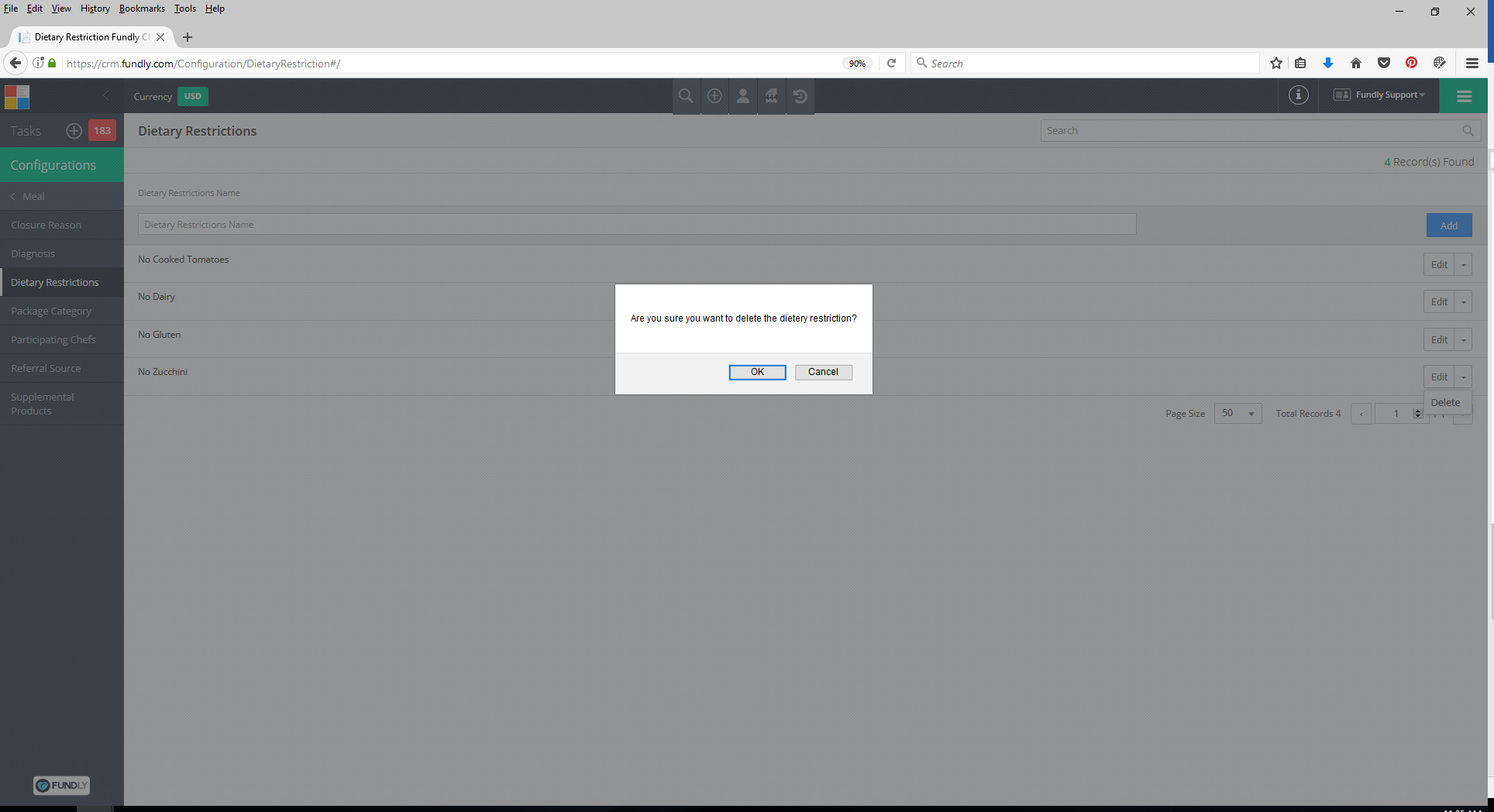
- Confirm that you want to delete the dietary restriction by clicking OK. A dietary restriction cannot be deleted if it has been used on any client records.
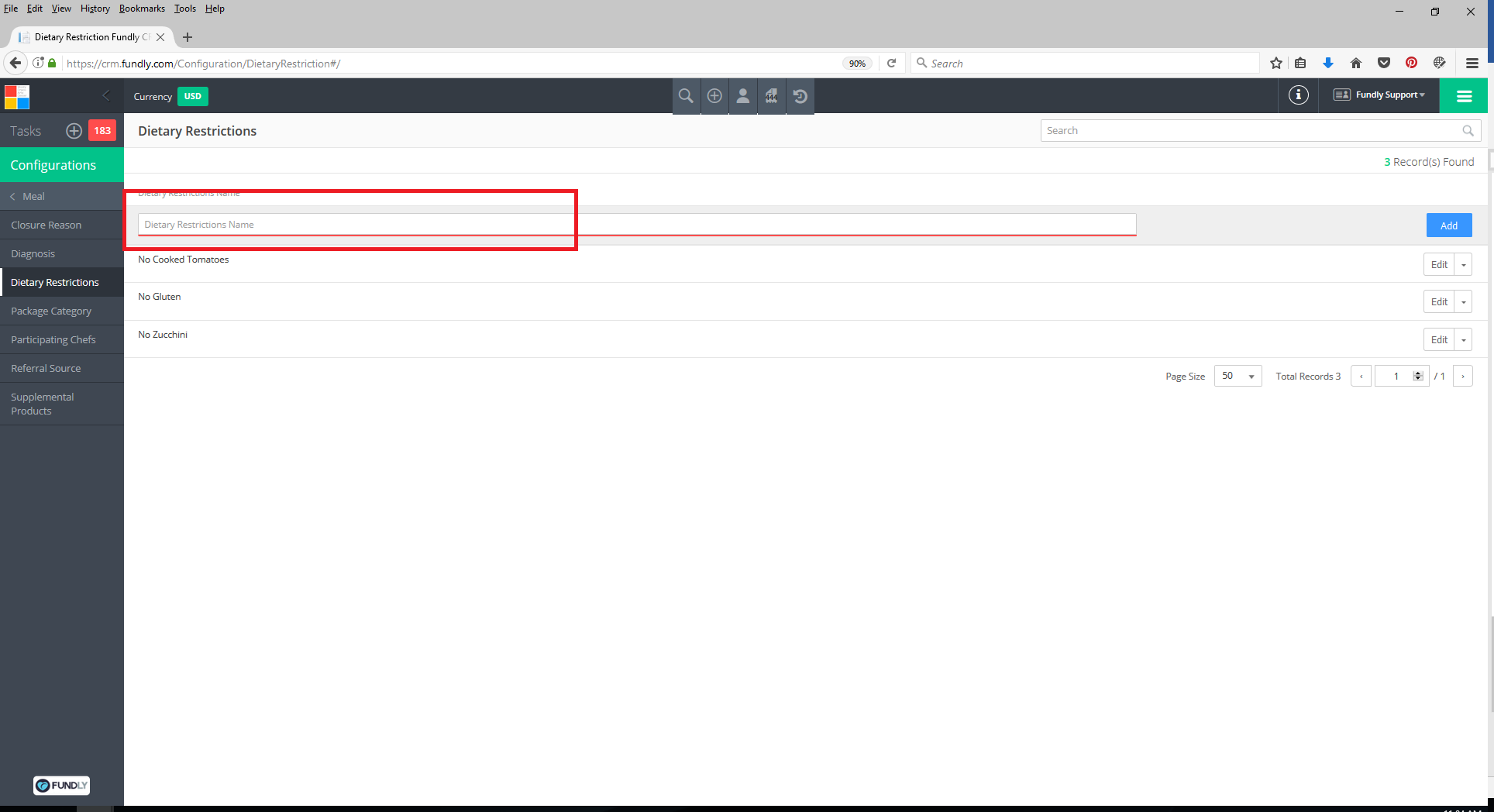
- To Add a new dietary restriction to the list, type a term or phrase into the Dietary Restriction Name box and then click the Add
Comments
0 comments
Article is closed for comments.